What is location tracking?#
Location tracking is the ability of a device, an application, or a digital service account to collect your data about multiple things including your physical location. This tracking happens in real time or can be stored as a history over a period of time depending on your settings for the device, app, or account. As a result, people may not realize how much information they are sharing or how that information is being used.
Why location awareness matters#
Location data does more than show where someone is at a given moment. Over time it can reveal patterns like daily routines, frequently visited places, or personal relationships. Spending just a few minutes reviewing location access on a phone can help reducing risk.
This section focuses on iPhone settings.
iPhone: Location settings#
Quick guidelines#
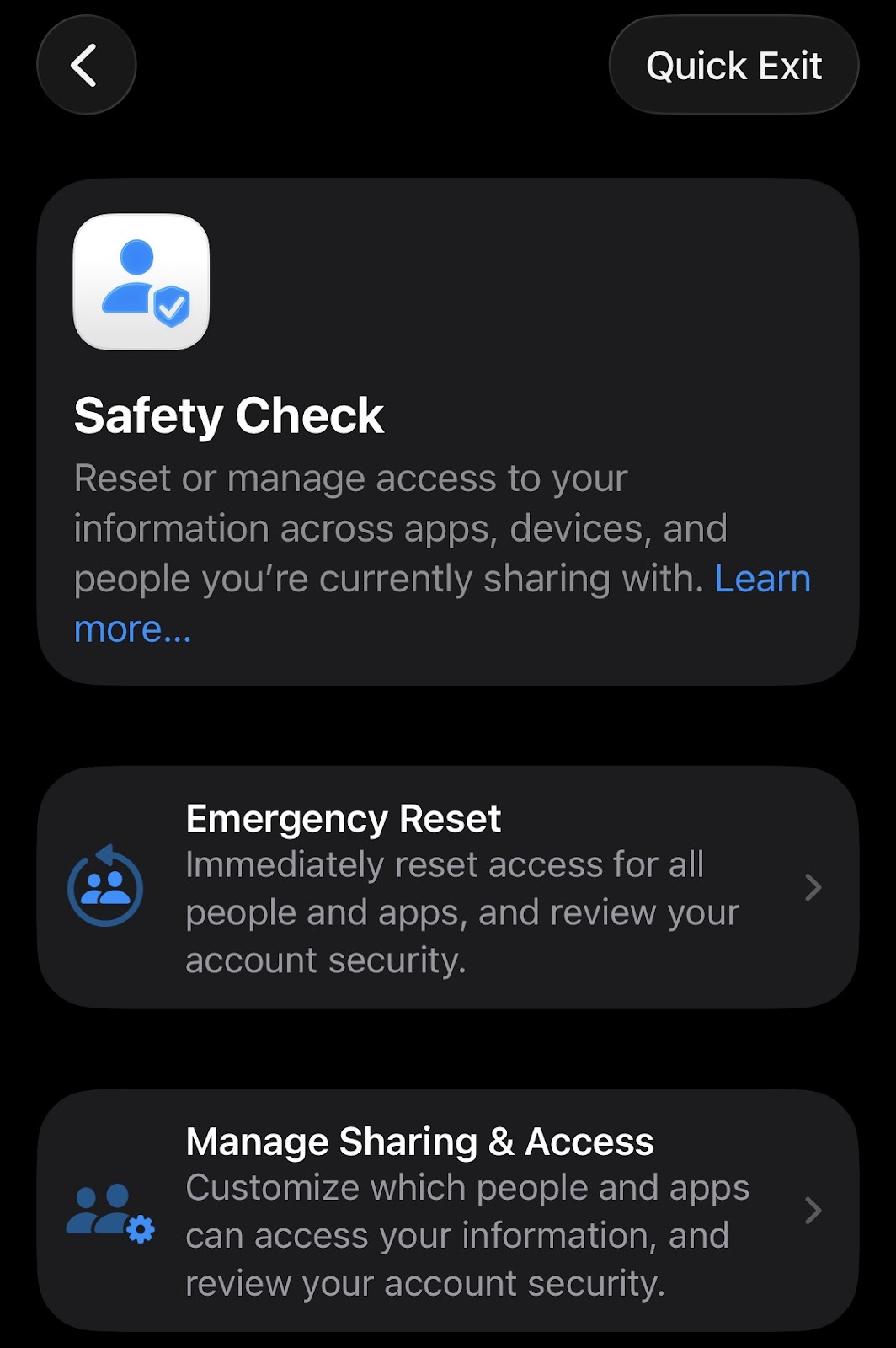
- For a simple one step, search for “Safety Check” in the settings app - you’ll have the option to perform an “Emergency Reset” or perform “Manage Sharing & Access” to advise on which people and apps have access to your location and information.
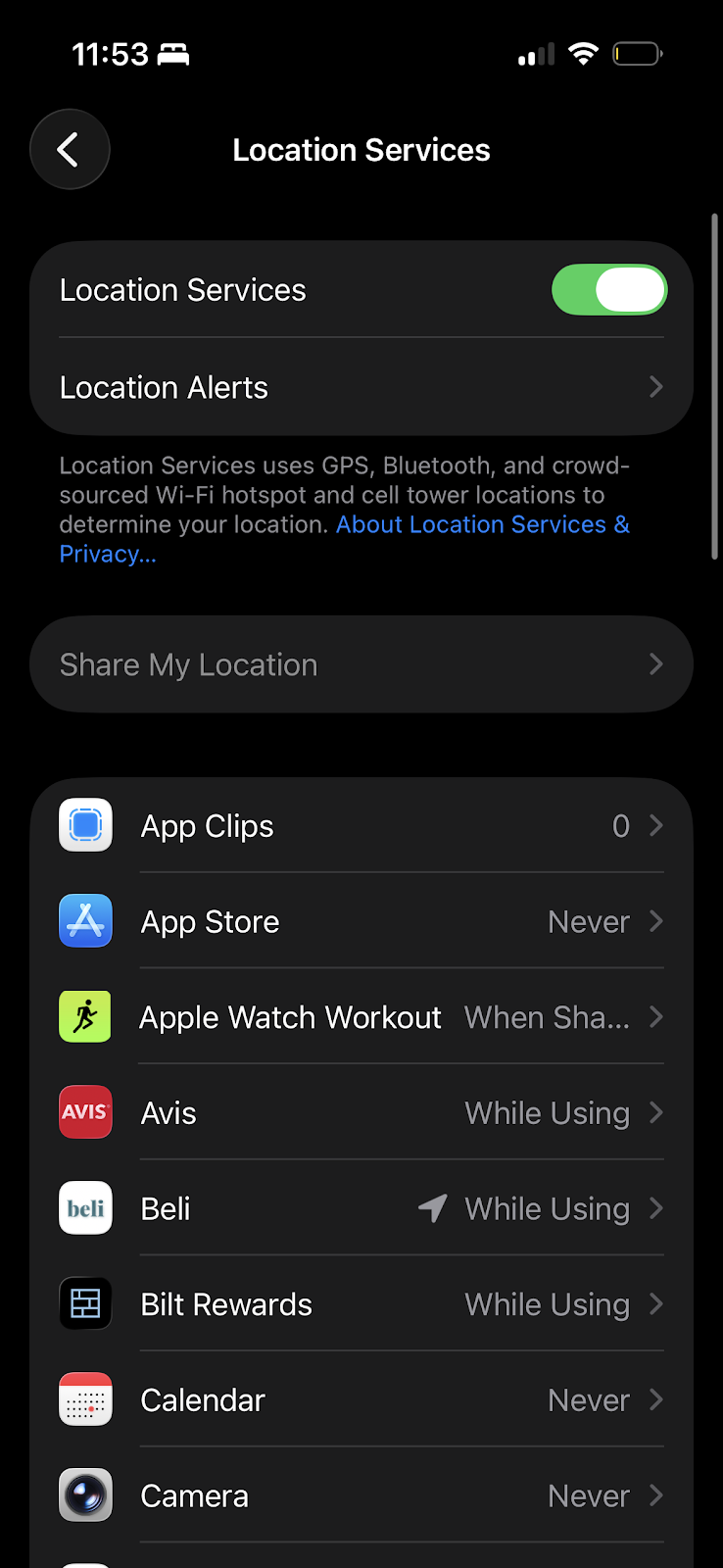
- For more info on app permissions, navigate to the settings app and search for the “Location Services” selecting the option with “Privacy and Security” at the bottom. From there you’ll be able to see all the apps that have location permissions and be able to disable permissions and investigate suspicious apps.
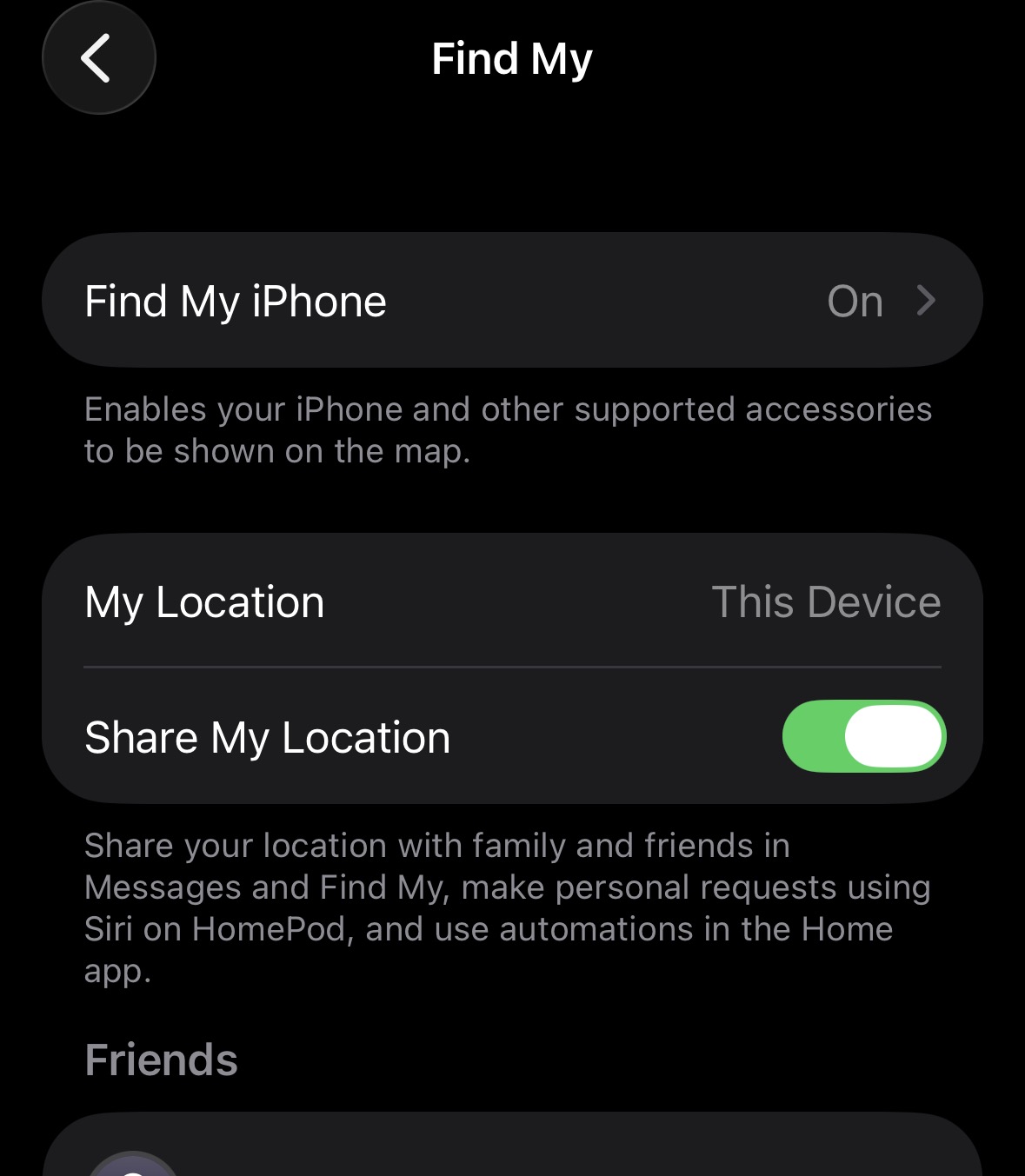
- For more info on the “Find My” app look for “Share My Location” in settings and select the one with “Apple Account -> Find My” at the bottom. From there you’ll be able to see if “Find My” is enabled and which users currently have access to your shared location.
More details#
- Settings -> General -> VPN & Device Management.
Do you have any configuration profiles that shouldn’t be there (meaning, weren’t set up by you or your workplace, that aren’t required)? These profiles cannot access something like live GPS coordinates, but can still indirectly access it.
If you open a profile and see any of the following, location tracking may be possible:
“This iPhone is supervised”
MDM (Mobile Device Management) An MDM-enabled profile can query the device’s last known location, force the device into Lost Mode (which reports location). This is common for: School-issued iPhones Work phones.
How to review what is sharing your location
Settings → Account → Find My. Once selected, it shows your “Friends”; these are the Apple Contacts who can view your location. Manage if you want “Find My iPhone” on or not, and turn off “Share My Location” to disable family and friends (includes family sharing). You can also go into the Find My app to disable these friends by swiping left on them.
If Find My is greyed out (meaning you can’t select it), do each of the following, and then check if you can access it. Stop once you’ve unlocked it:- Update iOS
- Agree to iCloud Terms and Conditions
- Check if you’re a part of a family account. Settings → Account → Family. If you are in a family,
- Important note: regarding Location Sharing within Family, this is about sharing your real-time whereabouts with family in the Find My app and can be toggled on/off independently. Turning off location sharing doesn’t disable the core Find My device tracking for security unless you also sign out or turn off Find My for the device itself.
- Settings → Screen Time → Content & Privacy Restrictions [enter password if needed]. First, scroll down to “Allow Changes To”, select Accounts, and ensure it’s “Allow”. Then, go back to Content & Privacy Restrictions, go to “Location Services”, and ensure it says Allow
- If you don’t know the password, go to Settings → Screen Time → Change Screen Time Password → Change Screen Time Password
- If there is a “forgot password” option, click it, and enter your phone’s Apple ID email and password. Account information has to be the same as when the password was first created. Enter a new screen time password that you will remember.
- If there is no “forgot password” option, the iPhone is likely being managed by someone else: either an organization or group. You are likely in an iPhone family. Check by going to Settings → Account → Family, and check if you are part of one. If this is the case, you are likely set as a “Child”, and will have no way of editing the password. The only way for the Screen Time password to be edited is by the Organizer of the family. Furthermore, only the Organizer can change you from being a “Child”. You are essentially soft-locked out of many of the options with “Screen Time”
- If you don’t know the password, go to Settings → Screen Time → Change Screen Time Password → Change Screen Time Password
- You’re signed into iCloud, but account changes are restricted. Settings → Screen Time → Content & Privacy Restrictions (if screen time password, see iv->1.) → Under “Allow Changes To:”, select Account → Select Allow → Restart your iPhone
- A device management profile is installed; Settings → General → VPN & Device Management. If you see a profile, that’s likely the cause. Find My is disabled via an Apple configuration profile (MDM) through the use of Restrictions payload. It prevents users from modifying account settings or by setting specific keys like allowFindMyDevice to false (which can also disable Activation Lock on managed devices), but requires admin control over the Apple ID login itself for complete enforcement, which you may have
- Settings → Privacy & Security → Location Services → Check if it’s off; if it is, then that’s what’s disabling Find My. Re-enable it. Also scroll down to the Find My App and re-enable it
- You may not be fully signed into iCloud, meaning that sometimes the Apple ID looks signed in, but iCloud services aren’t fully enabled. Settings → Account → Sign Out → Restart your phone → Sign back in
Settings → Privacy & Security → Location Services. Check each of the applications you have installed and who you are sharing your location with in each one
Settings → General → VPN & Device Management. If there is a profile that hasn’t been installed by you, your workplace, school, VPN provider, or any other trusted source, it could’ve been installed maliciously and source your location. An MDM-enabled profile can query the device’s last known location, or force the device into Lost Mode (which reports location). It can also infer your location via connected IP’s, and have geofence restrictions, which can track your location to an extent. It cannot, however, track your exact GPS coordinates.
- If it has any of the following, that means it can likely access your location through above means:
- “MDM Profile” or “Remote Management” → it has high control
- “Supervised” → the strongest control for a profile
- Installed certificates → potential traffic inspection, leading to network track
- VPN listed → network visibility, leading to network track
- If it has any of the following, that means it can likely access your location through above means: